
Set an Overdraft Limit
Set and manage the approved overdraft limit for your Gupshup wallet.
Set an Overdraft Limit
Set an overdraft limit for your Gupshup wallet so approved messaging usage can continue after the wallet balance reaches zero.
Background
An overdraft lets a wallet go into a negative balance up to an approved credit limit. Gupshup uses your total recharges and usage over the previous 90 days to calculate the limit available for self-service assignment.
Before you begin
Make sure that:
- You can sign in to your Bizgate Partner Portal account.
- You know the overdraft amount you want to assign, within the limit shown by the portal.
Limitations
- You can assign only an amount within the system-calculated limit available for your wallet.
- A limit assigned by Gupshup Support cannot be changed in the portal.
Assign an overdraft limit
-
Sign in to your Bizgate Partner Portal account.
-
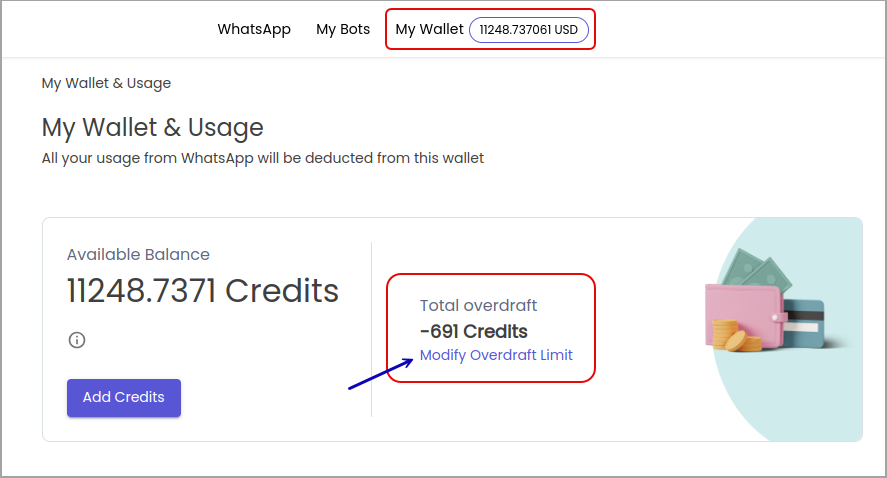
Select My Wallet.
-
On the My Wallet & Usage page, select Modify Overdraft Limit.
-
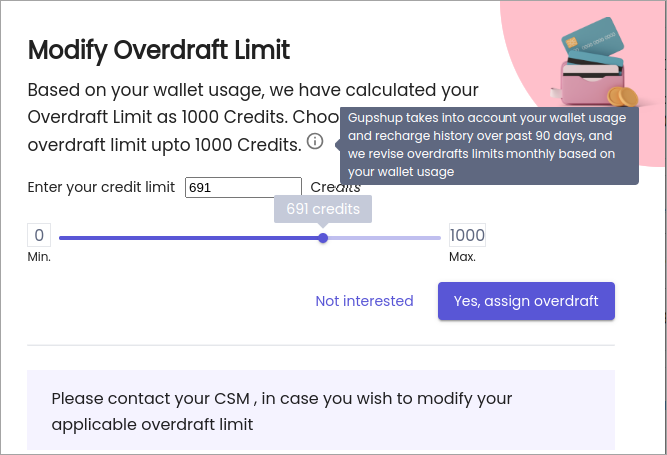
Enter an overdraft amount between 0 and the maximum available limit shown by the portal.
-
Select Yes, assign overdraft.
-
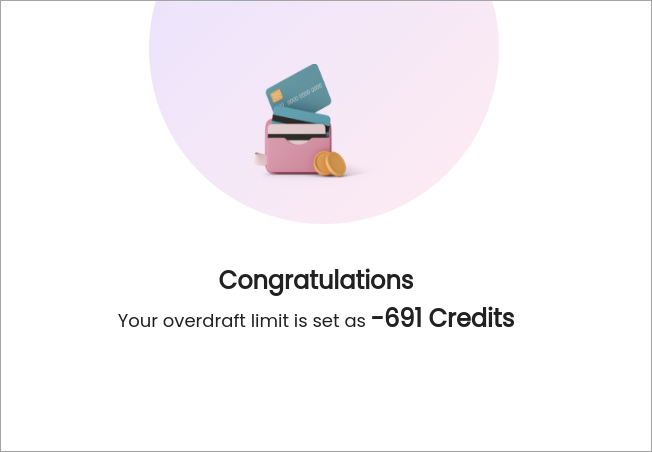
Confirm that the selected credits appear in Total overdraft limit.
Important information
The system-calculated limit is based on your wallet's total recharges and usage over the last 90 days. Gupshup may assign a different limit based on your partner relationship. When this happens, the assigned limit is managed by Gupshup and cannot be adjusted through the portal.
Important: An overdraft increases the amount your wallet can owe. Monitor your balance and repay the negative balance according to your billing terms.
What's next?
- Wallet — learn how to recharge and monitor your wallet.
- Unused Commission Policy — review commission redemption rules.
- Contact your assigned CSM if you need help with a Gupshup-assigned overdraft limit.
Related resources
Previous: Wallet
Next: Unused Commission Policy
Updated about 1 month ago