
Begin go-live setup
Connect the selected app to WhatsApp and complete the information required to go live.
Begin go-live setup
Go-live setup connects your BizGate app to a WhatsApp Business Account (WABA) and the phone number that will be used for WhatsApp messaging.
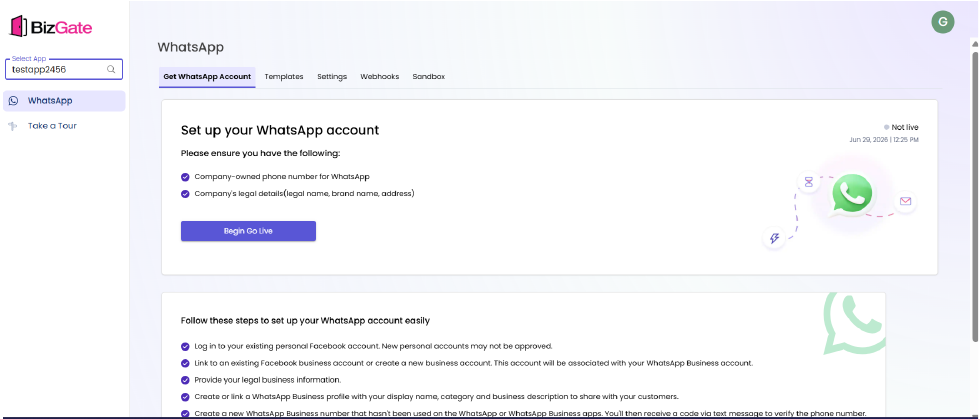
Before you begin
- Select the app you want to take live.
- Prepare a company-owned phone number for WhatsApp.
- Prepare the company's legal name, brand name, and address.
- Ensure you can sign in to the Facebook account that manages the business.
Steps
- Open WhatsApp in the BizGate dashboard for the selected app.
- Select Get WhatsApp Account or Begin Go Live.
- Sign in to the Facebook account used for the business.
- Link an existing Facebook business account, or create one when appropriate.
- Provide the business's legal information.
- Create or select the WhatsApp Business profile, including its display name, category, and business description.
- Add a phone number that is not currently used by the WhatsApp or WhatsApp Business app.
- Complete phone verification using the code sent by text message.
Expected result
The app is connected to a WABA and its WhatsApp phone number. The status shown in BizGate should reflect the next required setup action or that the app is ready to go live.
Troubleshooting
- If the phone number is rejected, make sure it is not active in the consumer WhatsApp or WhatsApp Business app.
- If verification does not arrive, confirm the number can receive SMS and retry using the supported verification option.
- If the business account cannot be selected, confirm your Facebook account has the required business permissions.
Related resources
Updated about 1 month ago
Did this page help you?