
Create and manage templates
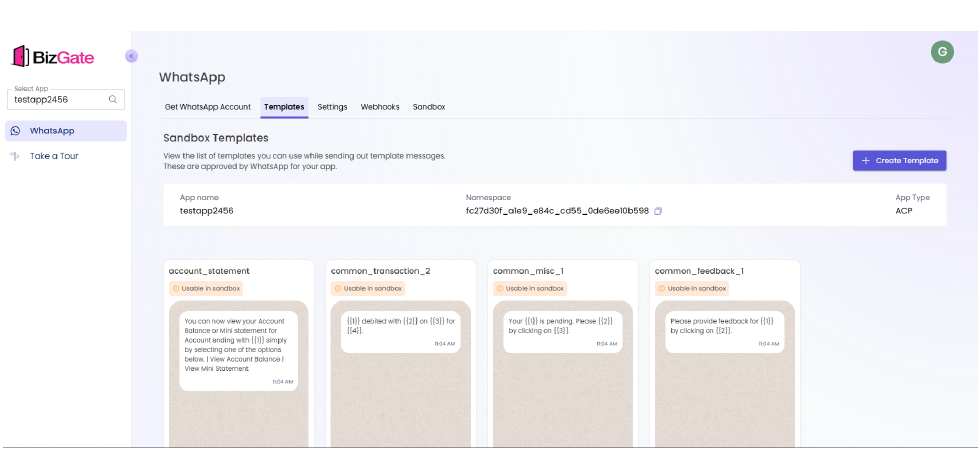
View existing WhatsApp templates and start creating a new template for the selected app.
Create and manage templates
WhatsApp templates are pre-approved messages used for business-initiated communication. Use the Templates page to review the templates associated with the selected app and create new ones.
Before you begin
- Select the correct app.
- Complete WhatsApp setup, or ensure the app has a WABA associated with it.
- Prepare the template name, message content, category, language, and any variables or media that the message needs.
View templates
- Open Templates.
- Review the app name and namespace to confirm the selected app.
- Review the template cards to identify existing templates and their content.
Create a template
- Select Create Template.
- Enter the template details requested in the form.
- Add the message content and any supported variables, media, or buttons.
- Review the content for accuracy and policy compliance.
- Submit the template for approval.
Expected result
The new template appears in the template list. Its status reflects whether it is pending review, approved, or requires changes.
Troubleshooting
- If the template is not visible, confirm that the correct app is selected and refresh the list after submission.
- If a template is rejected, review the rejection feedback, update the content, and submit a revised template.
- If templates do not match your source of truth, use the relevant template synchronization workflow or API.
Related resources
Updated about 1 month ago
Did this page help you?