
Manage apps in the Partner Portal
Manage apps in the Partner Portal
Use the Apps page to find apps linked to your partner account and start common app-management tasks.
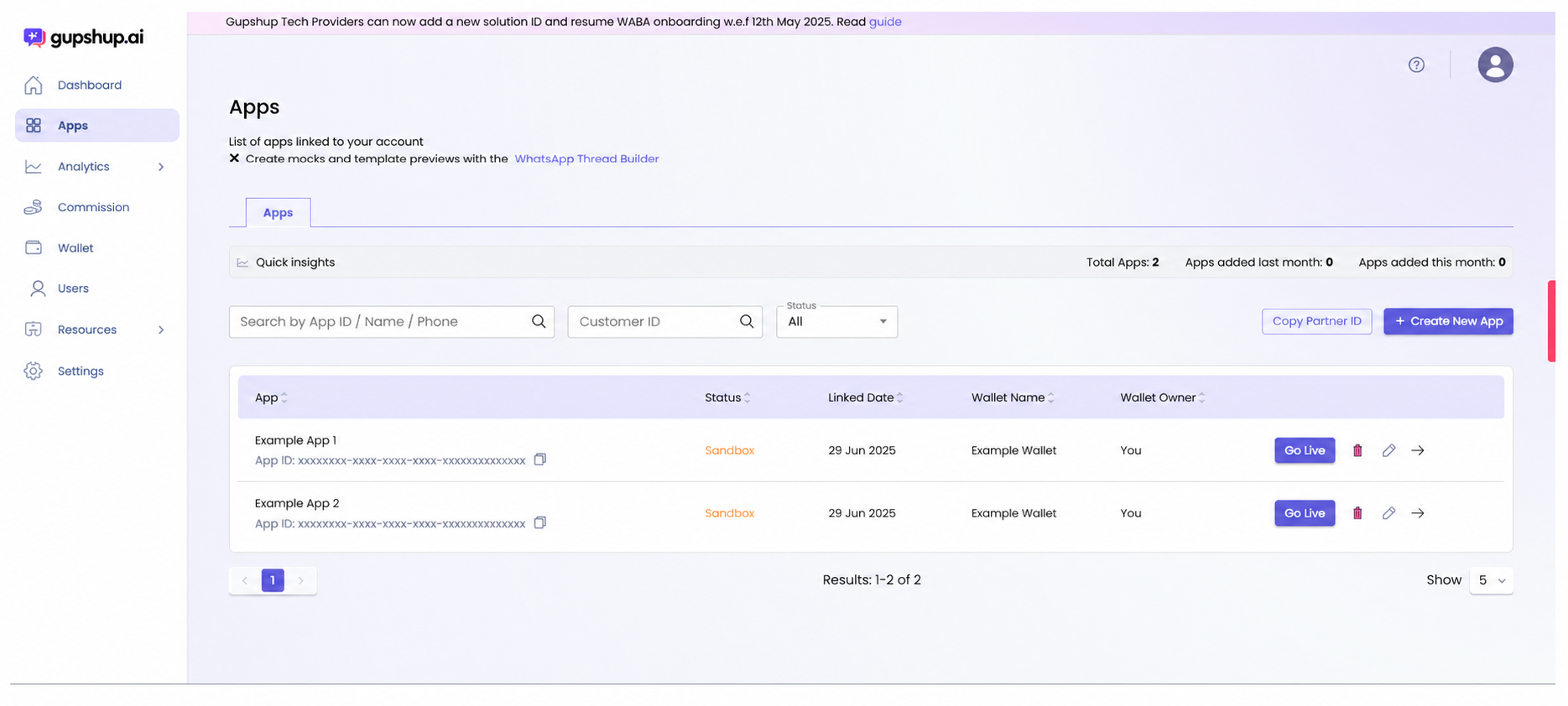
Find an app
- Select Apps in the left navigation.
- Search by app ID, app name, or phone number. You can also search by customer ID.
- Use the Status filter to narrow the results.
- Review the app name, app ID, status, linked date, wallet name, and wallet owner.
Copy an identifier
- Select the copy icon beside an App ID to copy that app's identifier.
- Select Copy Partner ID to copy the identifier for your partner account.
Treat partner and app identifiers as account information. Share them only with trusted recipients when required.
Create an app
- Select Create New App.
- Complete the app-creation flow presented by the portal.
- Return to the Apps page and confirm that the new app appears in the list.
New apps can appear with a Sandbox status until the required live setup is completed.
Manage an existing app
Use the actions at the end of the app row to manage the selected app:
- Select Go Live to begin live setup for a sandbox app.
- Select the edit icon to update available app details.
- Select the arrow to open the app.
- Select the Bizgate logo to open the app in Bizgate
Change the number of results
Use Show at the bottom of the list to change the number of apps displayed on each page. Use the pagination controls to move between result pages.
Updated about 1 month ago
Did this page help you?