
Configure a webhook
Add a callback URL and choose the events BizGate should send to your application.
Configure a webhook
Webhooks deliver WhatsApp events to a callback URL in real time. Configure the URL and select the event types your application needs to receive.
Before you begin
- Select the correct app.
- Prepare a publicly accessible HTTPS callback URL that accepts incoming HTTP POST requests.
- Make sure your receiving service can validate, log, and process the events you select.
Add a webhook
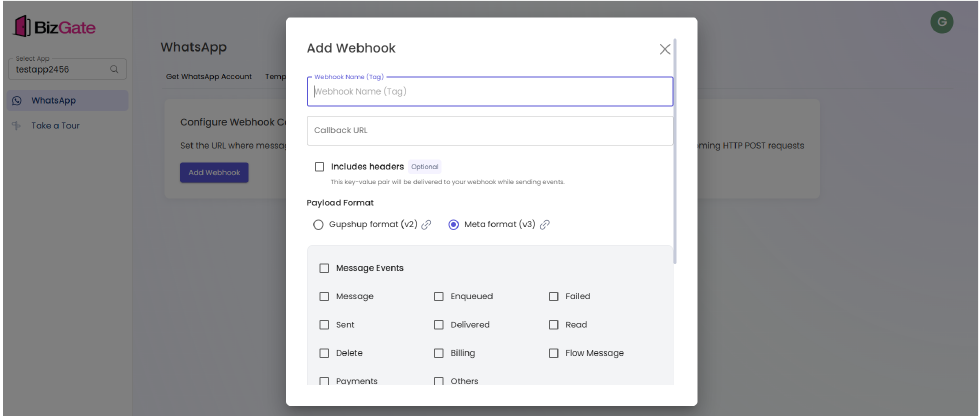
- Open Webhooks.
- Select Add Webhook.
- Enter a meaningful webhook name or tag.
- Enter the callback URL.
- Choose whether headers should be included.
- Choose the payload format required by your receiving service.
- Select the event categories and individual events to receive. The available events include message states such as sent, delivered, read, and failed.
- Save the webhook.
Expected result
The webhook is listed for the selected app and can receive the selected events at its callback URL.
Troubleshooting
- If delivery fails, make sure the URL is public, uses HTTPS, and responds successfully to POST requests.
- If expected events are missing, reopen the webhook and confirm the relevant event categories and events are selected.
- If your application cannot parse the request, confirm that the selected payload format matches its implementation.
Related resources
Updated about 1 month ago
Did this page help you?